Buy brainstation.eu ?
We are moving the project
brainstation.eu .
Are you interested in purchasing the domain
brainstation.eu ?
domain@kv-gmbh.de · 0541-91531010
Buy brainstation.eu ?
Is the printer network-capable?
Yes, the printer is network-capable. It can be connected to a network either through a wired Ethernet connection or wirelessly through Wi-Fi. This allows multiple users to easily print from different devices on the same network. Additionally, network-capable printers often come with additional features such as cloud printing and mobile printing capabilities. **
What is a network printer?
A network printer is a printer that is connected to a network, allowing multiple users to send print jobs to the printer from different devices such as computers, laptops, and smartphones. This type of printer eliminates the need for each device to be directly connected to the printer, making it more convenient for users in a shared environment. Network printers can be wired or wireless, and they often offer additional features such as scanning and faxing capabilities. **

Similar search terms for Printer
Top-Angebote
Products related to Printer:
-
Uplifted Finds Mini Sticker Printer Inkless Thermal Pocket Bluetooth Printer For Photos And Memos printer SetThis compact pocket thermal printer makes it easy to print photos, notes, memos, and decorations wherever you go. It uses inkless thermal printing for clean, mess free output, making it perfect for journaling, scrapbooking, school, and creative...193,97 $*Shipping: 0,00 $Secure redirect to the provider
-
Kodak Step Touch 13MP Digital Camera & Instant Printer Go Bundle - WhiteDescription Ideal for photo-loving adventurers of all ages and skill levels, the KODAK Step Touch 13MP Digital Camera & Instant Printer Go Bundle combines photography, video recording and instant printing in one compact device. Its 3.5-inch touchscreen display lets you capture, view, edit and print photographs wherever you go. The camera features a 13MP sensor, 10x optical zoom, split-screen viewing, pop-up flash, auto-timer and selfie mirror, alongside a 1080p HD video recorder. The built-in printer uses ZINK Zero Ink technology, so there is no need for ink cartridges, toners or ribbons. It produces 2 x 3-inch sticky-back, full-colour prints with an extra protective coating designed to resist moisture, rips, tears and smudges. Bluetooth connectivity allows photographs to be sent and printed from a nearby smartphone or tablet, while images can also be printed from the camera or a microSD card. Onboard editing tools include filters, frames and emojis, and the built-in rechargeable lithium-ion battery supports portable use. An essential addition for holidays, outdoor parties, blogging and everyday memory-making.165,99 £*Shipping: 0,00 £Secure redirect to the provider
-
Uplifted Finds Portable Mini Printer Marklife P12 Thermal Printer Adhesive Sticker Labeling Machine green PrinterThis compact thermal printer delivers fast, clear labeling for home, office, school, and small business use. Designed for convenience and portability, it supports continuous label tape and produces smudge free adhesive labels for organization,...104,97 $*Shipping: 0,00 $Secure redirect to the provider


-
How can you use a printer without a network connection as a network printer?
You can use a printer without a network connection as a network printer by connecting it to a computer that is connected to the network. This can be done by using a USB cable to connect the printer to the computer. Once the printer is connected to the computer, you can share the printer over the network by enabling printer sharing in the computer's settings. This will allow other devices on the network to access and print to the printer as if it were a network printer. **
-
How can you set up a printer as a network printer?
To set up a printer as a network printer, you will need to connect the printer to your network either through a wired Ethernet connection or a wireless connection. Once the printer is connected to the network, you will need to install the printer drivers on the computers that will be using the network printer. You can do this by either downloading the drivers from the printer manufacturer's website or using the installation CD that came with the printer. After the drivers are installed, you can add the network printer to your computer by going to the Control Panel, selecting "Devices and Printers," and then clicking on "Add a printer." Choose the option to add a network printer and follow the prompts to complete the setup. **
-
What is the difference between a network printer and a local printer?
A network printer is a printer that is connected to a network and can be accessed by multiple users within that network, allowing for shared printing capabilities. On the other hand, a local printer is directly connected to a single computer or device, typically through a USB cable, and can only be used by that specific device. Network printers are more suitable for offices or environments with multiple users, while local printers are more convenient for individual users or small home offices. **
-
Why is the network printer not working anymore?
The network printer may not be working anymore due to various reasons such as a connectivity issue, a paper jam, low ink or toner levels, a software glitch, or a hardware malfunction. It is important to troubleshoot the printer by checking its connectivity, ensuring there is no paper jam, replacing ink or toner cartridges if necessary, restarting the printer and computer, and updating printer drivers. If these steps do not resolve the issue, it may require further inspection or professional assistance to determine the exact cause of the problem. **


How can I set up a network printer?
To set up a network printer, first, ensure that the printer is connected to the same network as the computer you want to print from. Next, install the printer drivers on the computer by either using the installation CD that came with the printer or downloading the drivers from the manufacturer's website. Then, go to the Control Panel on your computer, select "Devices and Printers," and click on "Add a printer." Follow the on-screen instructions to locate and install the network printer. Finally, set the network printer as the default printer on your computer for easy access. **
What is the network connection on the printer?
The network connection on the printer is typically either wired or wireless. A wired connection involves connecting the printer directly to a router or network switch using an Ethernet cable. This type of connection provides a stable and reliable network connection. On the other hand, a wireless connection allows the printer to connect to the network using Wi-Fi, enabling users to print from various devices without the need for physical cables. Both types of network connections have their own advantages and can be chosen based on the specific needs and setup of the printing environment. **
Top-Angebote
Products related to Printer:
-
Uplifted Finds Portable Mini Printer Marklife P12 Thermal Printer Adhesive Sticker Labeling Machine white PrinterThis compact thermal printer delivers fast, clear labeling for home, office, school, and small business use. Designed for convenience and portability, it supports continuous label tape and produces smudge free adhesive labels for organization,...104,97 $*Shipping: 0,00 $Secure redirect to the provider
-
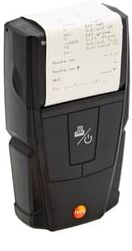
Testo IR Printer – Wireless Infrared Printer for Testo 310The testo 0554 3100 IR printer is the wireless printing solution for jobsite documentation needs in combustion analysis. Integrated magnets allow for convenient printer placement. For use with the testo 310 residential combustion analyser.213,18 £*Shipping: 0,00 £Secure redirect to the provider
-
Uplifted Finds Mini Sticker Printer Inkless Thermal Pocket Bluetooth Printer For Photos And Memos printer SetThis compact pocket thermal printer makes it easy to print photos, notes, memos, and decorations wherever you go. It uses inkless thermal printing for clean, mess free output, making it perfect for journaling, scrapbooking, school, and creative...193,97 $*Shipping: 0,00 $Secure redirect to the provider
-
Kodak Step Touch 13MP Digital Camera & Instant Printer Go Bundle - WhiteDescription Ideal for photo-loving adventurers of all ages and skill levels, the KODAK Step Touch 13MP Digital Camera & Instant Printer Go Bundle combines photography, video recording and instant printing in one compact device. Its 3.5-inch touchscreen display lets you capture, view, edit and print photographs wherever you go. The camera features a 13MP sensor, 10x optical zoom, split-screen viewing, pop-up flash, auto-timer and selfie mirror, alongside a 1080p HD video recorder. The built-in printer uses ZINK Zero Ink technology, so there is no need for ink cartridges, toners or ribbons. It produces 2 x 3-inch sticky-back, full-colour prints with an extra protective coating designed to resist moisture, rips, tears and smudges. Bluetooth connectivity allows photographs to be sent and printed from a nearby smartphone or tablet, while images can also be printed from the camera or a microSD card. Onboard editing tools include filters, frames and emojis, and the built-in rechargeable lithium-ion battery supports portable use. An essential addition for holidays, outdoor parties, blogging and everyday memory-making.165,99 £*Shipping: 0,00 £Secure redirect to the provider
-
Is the printer network-capable?
Yes, the printer is network-capable. It can be connected to a network either through a wired Ethernet connection or wirelessly through Wi-Fi. This allows multiple users to easily print from different devices on the same network. Additionally, network-capable printers often come with additional features such as cloud printing and mobile printing capabilities. **
-
What is a network printer?
A network printer is a printer that is connected to a network, allowing multiple users to send print jobs to the printer from different devices such as computers, laptops, and smartphones. This type of printer eliminates the need for each device to be directly connected to the printer, making it more convenient for users in a shared environment. Network printers can be wired or wireless, and they often offer additional features such as scanning and faxing capabilities. **
-
How can you use a printer without a network connection as a network printer?
You can use a printer without a network connection as a network printer by connecting it to a computer that is connected to the network. This can be done by using a USB cable to connect the printer to the computer. Once the printer is connected to the computer, you can share the printer over the network by enabling printer sharing in the computer's settings. This will allow other devices on the network to access and print to the printer as if it were a network printer. **
-
How can you set up a printer as a network printer?
To set up a printer as a network printer, you will need to connect the printer to your network either through a wired Ethernet connection or a wireless connection. Once the printer is connected to the network, you will need to install the printer drivers on the computers that will be using the network printer. You can do this by either downloading the drivers from the printer manufacturer's website or using the installation CD that came with the printer. After the drivers are installed, you can add the network printer to your computer by going to the Control Panel, selecting "Devices and Printers," and then clicking on "Add a printer." Choose the option to add a network printer and follow the prompts to complete the setup. **
Similar search terms for Printer
-
Uplifted Finds Portable Mini Printer Marklife P12 Thermal Printer Adhesive Sticker Labeling Machine green PrinterThis compact thermal printer delivers fast, clear labeling for home, office, school, and small business use. Designed for convenience and portability, it supports continuous label tape and produces smudge free adhesive labels for organization,...104,97 $*Shipping: 0,00 $Secure redirect to the provider
-
Uplifted Finds Portable Mini Printer Marklife P12 Thermal Printer Adhesive Sticker Labeling Machine white Printer BagThis compact thermal printer delivers fast, clear labeling for home, office, school, and small business use. Designed for convenience and portability, it supports continuous label tape and produces smudge free adhesive labels for organization,...114,97 $*Shipping: 0,00 $Secure redirect to the provider
-
Uplifted Finds Portable Mini Printer Marklife P12 Thermal Printer Adhesive Sticker Labeling Machine green Printer BagThis compact thermal printer delivers fast, clear labeling for home, office, school, and small business use. Designed for convenience and portability, it supports continuous label tape and produces smudge free adhesive labels for organization,...114,97 $*Shipping: 0,00 $Secure redirect to the provider
-
What is the difference between a network printer and a local printer?
A network printer is a printer that is connected to a network and can be accessed by multiple users within that network, allowing for shared printing capabilities. On the other hand, a local printer is directly connected to a single computer or device, typically through a USB cable, and can only be used by that specific device. Network printers are more suitable for offices or environments with multiple users, while local printers are more convenient for individual users or small home offices. **
-
Why is the network printer not working anymore?
The network printer may not be working anymore due to various reasons such as a connectivity issue, a paper jam, low ink or toner levels, a software glitch, or a hardware malfunction. It is important to troubleshoot the printer by checking its connectivity, ensuring there is no paper jam, replacing ink or toner cartridges if necessary, restarting the printer and computer, and updating printer drivers. If these steps do not resolve the issue, it may require further inspection or professional assistance to determine the exact cause of the problem. **
-
How can I set up a network printer?
To set up a network printer, first, ensure that the printer is connected to the same network as the computer you want to print from. Next, install the printer drivers on the computer by either using the installation CD that came with the printer or downloading the drivers from the manufacturer's website. Then, go to the Control Panel on your computer, select "Devices and Printers," and click on "Add a printer." Follow the on-screen instructions to locate and install the network printer. Finally, set the network printer as the default printer on your computer for easy access. **
-
What is the network connection on the printer?
The network connection on the printer is typically either wired or wireless. A wired connection involves connecting the printer directly to a router or network switch using an Ethernet cable. This type of connection provides a stable and reliable network connection. On the other hand, a wireless connection allows the printer to connect to the network using Wi-Fi, enabling users to print from various devices without the need for physical cables. Both types of network connections have their own advantages and can be chosen based on the specific needs and setup of the printing environment. **
* All prices are inclusive of VAT and, if applicable, plus shipping costs. The offer information is based on the details provided by the respective shop and is updated through automated processes. Real-time updates do not occur, so deviations can occur in individual cases. ** Note: Parts of this content were created by AI.